Timeline Editor
Pro Extension
The Timeline Editor is a Pro-only dock for advanced, time-based combo editing. It opens when you click Timeline Editor in the free GFFPlayer Inspector after addons/game_feel_flow_pro is enabled.
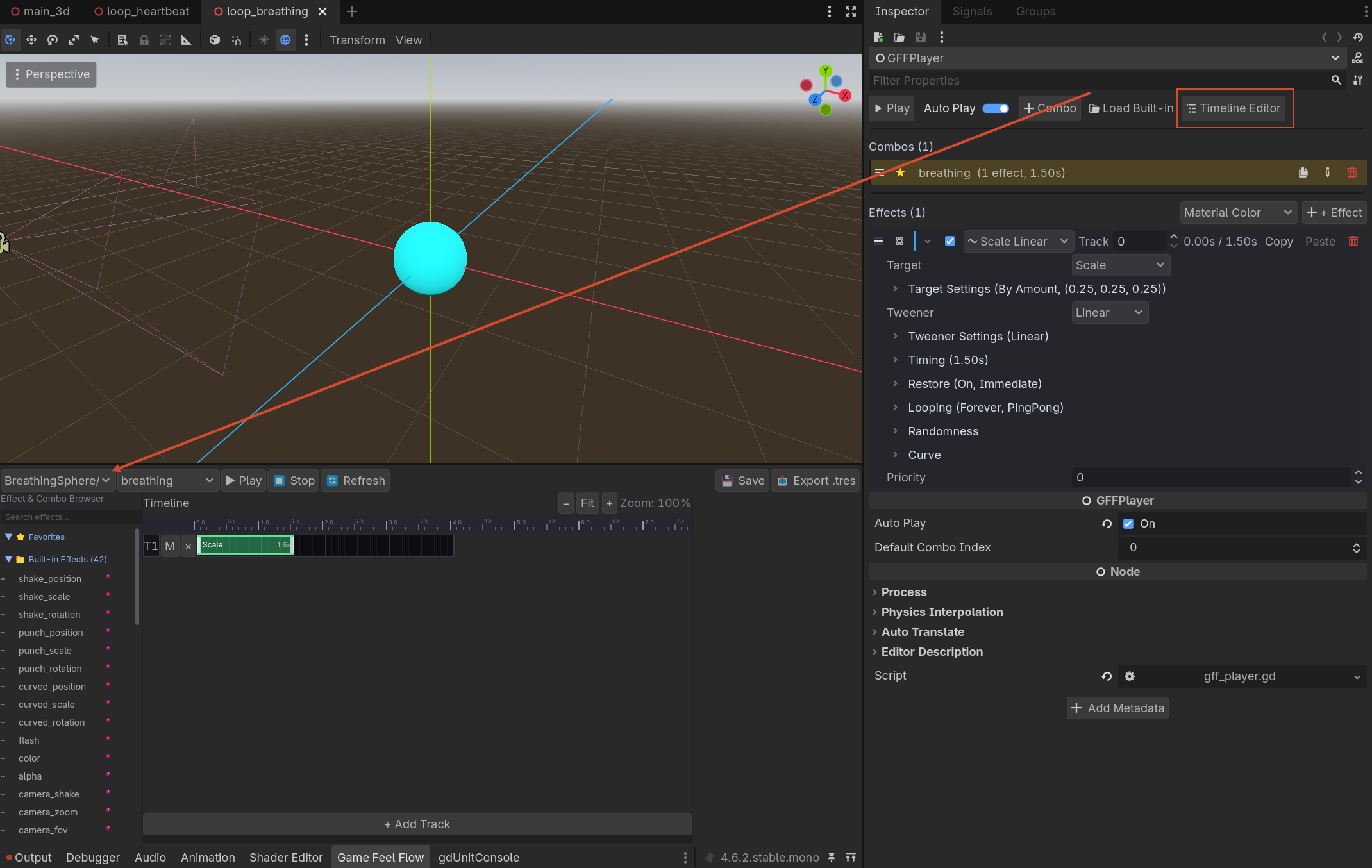
Opening the Timeline Editor
- Enable both Game Feel Flow and Game Feel Flow Pro in Project → Project Settings → Plugins.
- Select a
GFFPlayernode in your scene. - In the Inspector, click Timeline Editor.
The Timeline Editor dock appears at the bottom of the editor, loaded with the selected player and its active combo.
Tracks
Effects are arranged on vertical tracks. Multiple tracks run in parallel; blocks on the same track play sequentially.
Blocks
Each block represents a Combo entry. You can:
- Move blocks horizontally to change
start_time. - Resize blocks to change
duration(drag the left/right edge). - Right-click a block for Preview, Clone to Independent, Save As New .tres, and Delete.
Multi-Select
- Ctrl+Click a block to add/remove it from the selection.
- Rubber band: drag on empty timeline area to select all blocks inside the rectangle. Hold
CtrlorShiftto add to the current selection instead of replacing it. - Selected blocks get a bright highlight border.
- Delete removes all selected blocks at once.
- Dragging any selected block moves the whole selection together (relative offsets are preserved).
Copy / Paste
- Ctrl+C copies the selected blocks.
- Ctrl+V pastes them at the playhead position. When no playhead is visible, blocks keep their original
start_time. - Pasted blocks always get fresh effect instances (deep-duplicated
GFFEffectresources), so editing a pasted block never affects the original. - The clipboard is shared across the editor, so you can copy blocks from one combo/player and paste them into another.
Snap to Grid
- Toggle 🧲 Snap in the toolbar to snap block dragging to a time grid. The button label lights up while snap is active.
- Choose the grid increment from the dropdown next to it: 0.01s, 0.05s, 0.1s, 0.25s, 0.5s (default 0.05s).
- When snap is off, blocks move on a fine 0.01s step as before.
Event Blocks
Event blocks are zero-duration markers that fire a method call or a signal emission on the preview/playback target when the playhead reaches their start_time.
- Click ⚡ Event in the toolbar to add an event block at the playhead (or at
t=0when no playhead is visible). - Event blocks render as gold diamond markers and cannot be resized.
- Select an event block to configure it in the parameter panel:
- Event Type:
methodorsignal - Method Name: method to call on the target (for
method) - Signal Name: signal to emit on the target (for
signal) - Args: optional comma-separated arguments (numbers are parsed automatically)
- Event Type:
- Events never block effect placement — effect blocks may freely overlap an event marker's time.
- Event blocks also work at runtime: they are stored as regular combo entries (backed by
GFFEventEffect), so a saved combo fires them during normal gameplay throughGFFCombo.execute().
Note
Entries on the same track execute sequentially. For exact timing, place event blocks on their own track so they are not delayed by a preceding effect on the same track.
Timeline Zoom
- Mouse wheel over the timeline zooms in/out, centered on the cursor position.
- Use the − / Fit / + buttons in the timeline header for button-based zoom.
- 🔍 Reset Zoom in the toolbar restores 100% zoom.
Saving
Changes are saved back to the selected combo in GFFPlayer.combo_dictionary. Press Ctrl+S to save the scene.